
Tutorial · HappyHorse 1.0

How to Use HappyHorse 1.0 — Generate AI Video in Seconds

HappyHorse 1.0 is a 15B-parameter open-source model that turns text prompts or still images into 1080p video in roughly 10 seconds. This guide walks you through every step — no prior AI experience required.

1080p output~10s generation15B parametersCommercial license
Quick Start

Three Steps to Your First Video

If you just want to see HappyHorse 1.0 in action, start here.

  1. Go to HappyHorse AI video generator

    Open the HappyHorse web app — no installation needed. Works in any modern browser.

  2. Type a prompt or upload an image

    Describe your video in plain English, or drag in a reference image to drive the visual style.

  3. Click Generate & download

    HappyHorse 1.0 renders your 1080p clip in roughly 10 seconds. Download or share directly.

Not sure if HappyHorse 1.0 is right for you? Read our HappyHorse 1.0 review with real-world benchmark scores before you start.

Visual Showcase

See What You Can Create

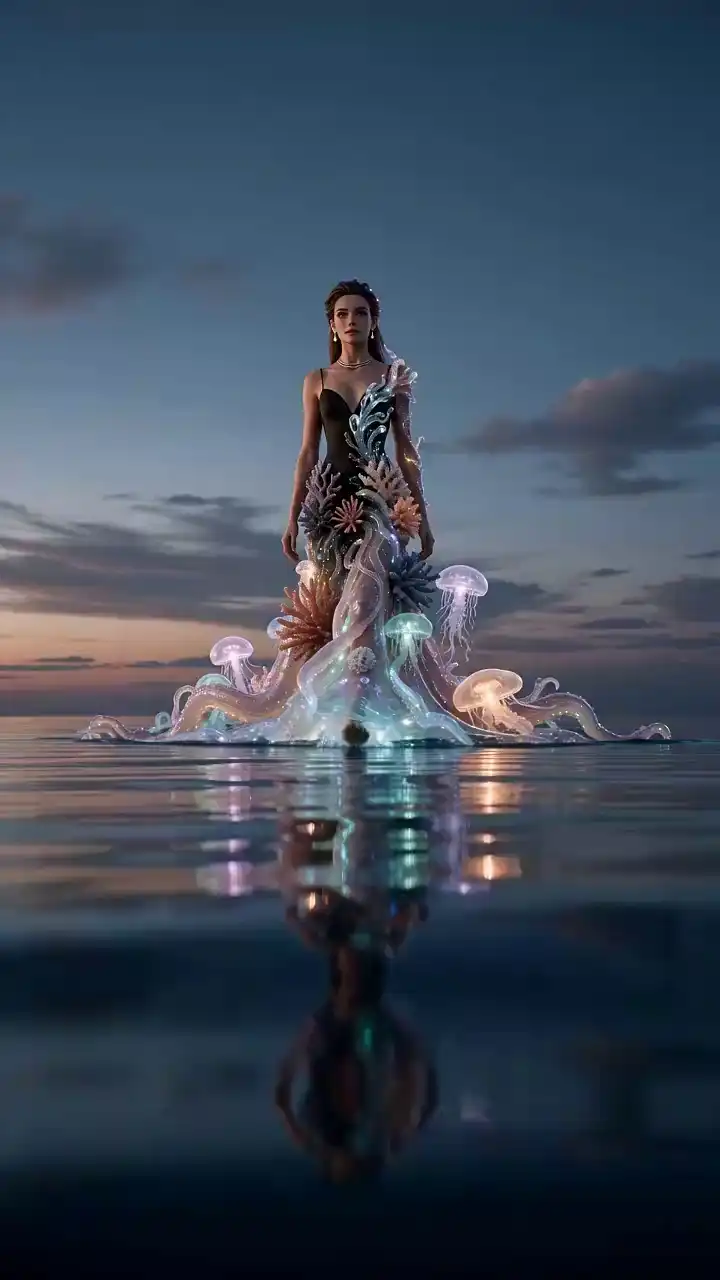
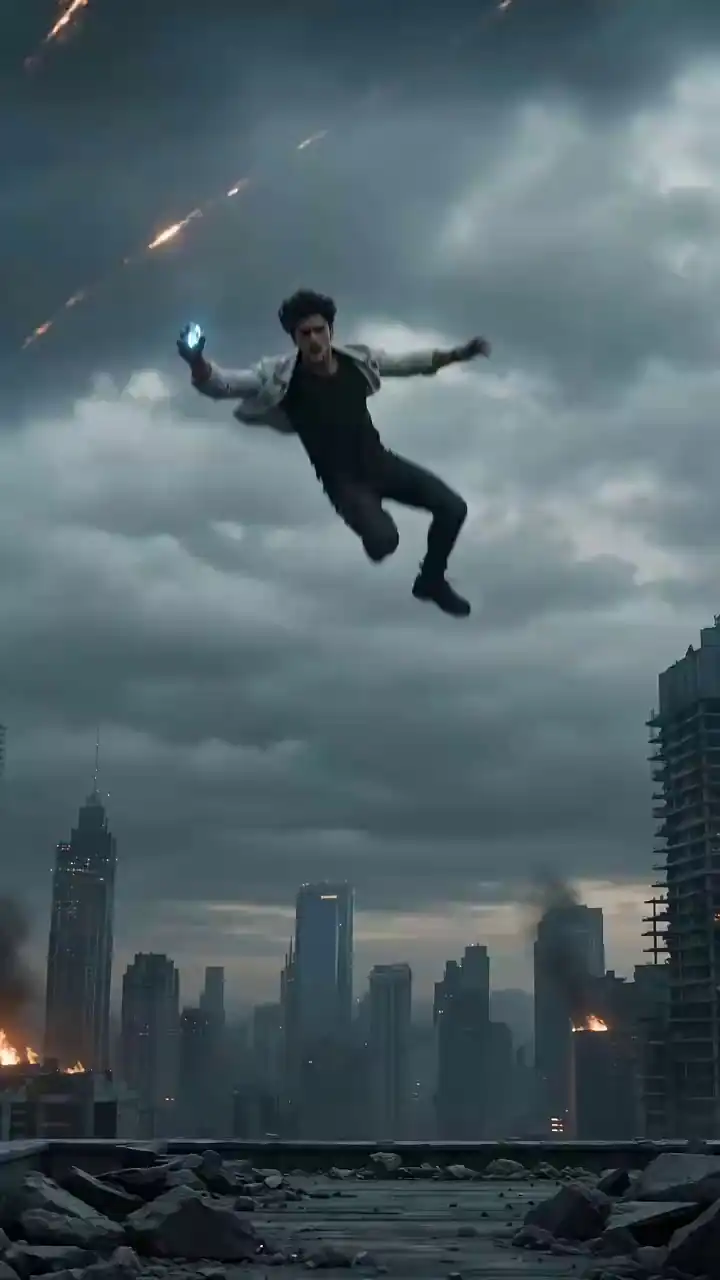
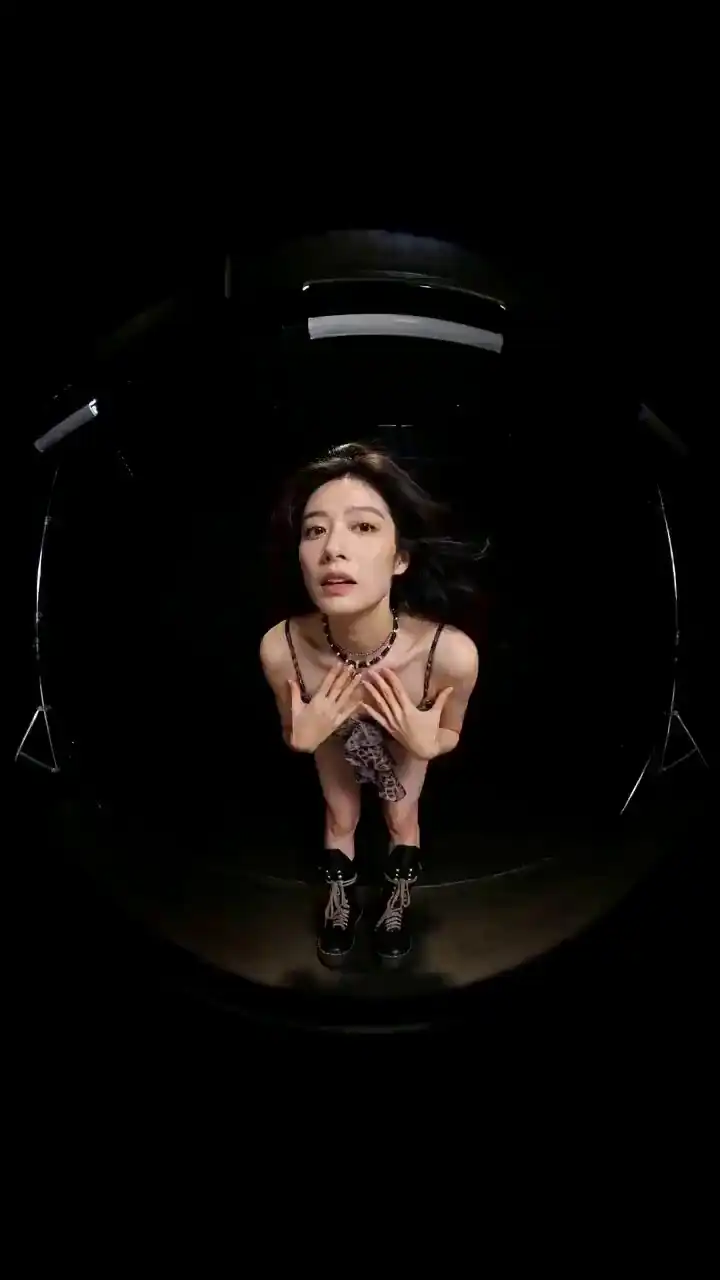
Explore these examples of 1080p videos generated by HappyHorse 1.0. Each clip demonstrates the model's ability to handle complex physics and lighting.

HappyHorse 1.0 example — Cinematic Landscape

Cinematic Landscape

A vast mountain range at sunset, generated from a simple text prompt.

HappyHorse 1.0 example — Urban Cyberpunk

Urban Cyberpunk

Neon-lit city streets with realistic reflections and rain effects.

HappyHorse 1.0 example — Nature Macro

Nature Macro

Close-up of a butterfly on a flower, showing stable motion and fine detail.

Step-by-Step Guide

How to Use HappyHorse 1.0 — Complete Step-by-Step Guide

A detailed walkthrough of every step to generate AI video with HappyHorse 1.0, from opening the app to downloading your finished clip.

  1. Open runhappyhorse.net in your browser

    Navigate to runhappyhorse.net. No account is required to generate your first video on the free tier.

    HappyHorse 1.0 is entirely web-based. Chrome, Firefox, Safari, and Edge are all supported. No GPU, no local install — everything runs server-side.

  2. Choose your generation mode: Text-to-Video or Image-to-Video

    Select 'Text to Video' to generate from a written prompt, or 'Image to Video' to animate a still image.

    Text-to-Video is best for creating scenes from scratch. Image-to-Video takes a JPEG or PNG and generates motion that's consistent with the colors, composition, and subject of your photo.

  3. Write your prompt (Text-to-Video) or upload your image (Image-to-Video)

    Enter a descriptive text prompt, or drag and drop a reference image into the upload zone.

    For text prompts, be specific: include subject, action, setting, lighting, and camera style. For image uploads, the model will animate whatever is in the frame — make sure the composition is clean and the main subject is clearly visible.

  4. Set output parameters: resolution, duration, and aspect ratio

    Choose from 720p or 1080p resolution, clip lengths from 2–8 seconds, and 16:9, 9:16, or 1:1 aspect ratios.

    1080p at 16:9 is the default and suits most use cases. For social Reels or TikTok, switch to 9:16 before generating. Longer clips consume more credits but give the model more room to develop motion.

  5. Click Generate and wait approximately 10 seconds

    Hit the Generate button. HappyHorse 1.0 returns a finished video clip in roughly 10 seconds.

    Server load can occasionally extend this to 15–20 seconds during peak hours. The progress bar reflects real-time rendering status.

  6. Preview, refine, or download

    Watch the preview in-browser. If the result needs adjustment, tweak your prompt or settings and re-generate.

    Small wording changes — adding 'cinematic lighting', 'slow zoom', or 'golden hour' — can significantly shift the look. When you're satisfied, click Download to save the MP4 file with your commercial license.

Two Generation Modes

Text-to-Video vs. Image-to-Video

HappyHorse 1.0 supports two distinct input modes. Here's when to use each.

Text to Video

Create a scene from words alone

Best for

  • Generating original cinematic scenes
  • Ad creative from a brief
  • B-roll without a reference image
  • Rapid concept testing

Example inputs

  • "A lone lighthouse on a rocky coast at dusk, ocean waves crashing, golden light"
  • "Aerial drone shot over a dense neon-lit city at night, rain reflections"
💡 Tip: Be specific about subject, action, lighting, and camera style in a single sentence.
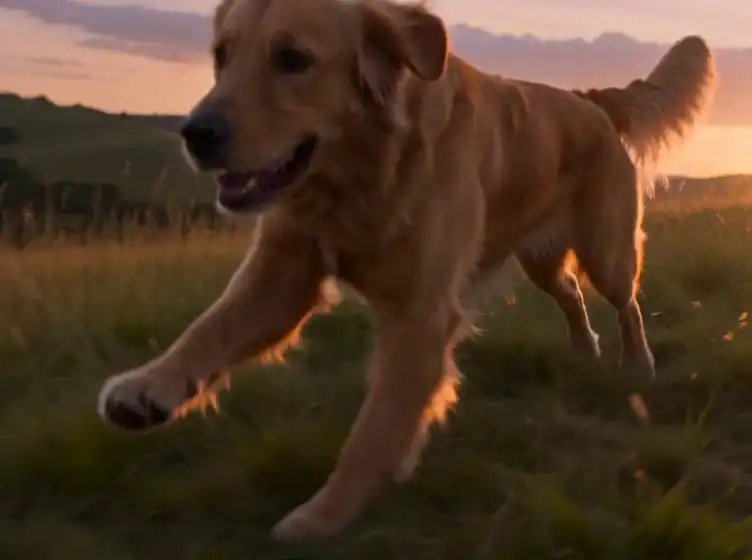
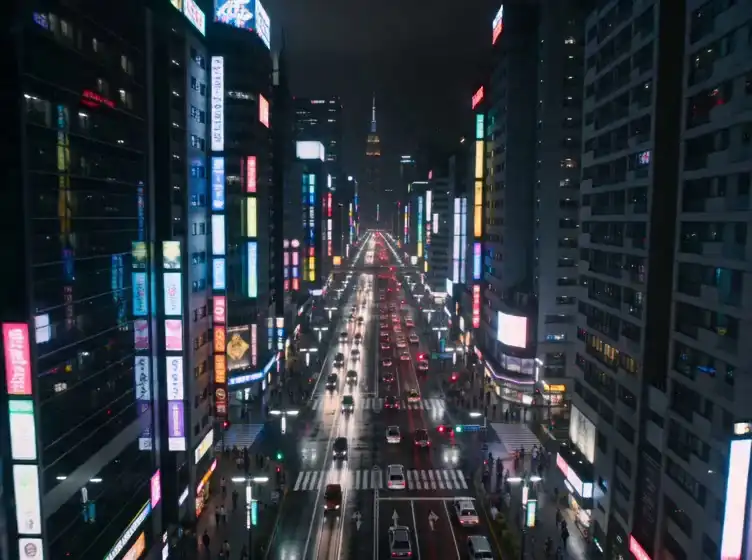
Image to Video

Animate any still photo or product shot

Best for

  • Product photography brought to life
  • Portrait animations
  • Real-estate or travel visuals
  • Consistent brand imagery in motion

Example inputs

  • Upload a product flat-lay → HappyHorse adds subtle depth and motion
  • Upload a landscape photo → camera slowly pulls back
💡 Tip: Use clean, high-resolution images with a clear subject. Avoid heavy text overlays.
Prompt Writing Guide

How to Write Prompts That Work in HappyHorse 1.0

The quality of your output is directly tied to prompt specificity. These patterns consistently produce better results.

HappyHorse 1.0 prompt guide — Subject + Action
Subject + Action

Weak Prompt

a dog

Strong Prompt

a golden retriever leaping through tall grass at sunset

Add motion and context to every subject.

HappyHorse 1.0 prompt guide — Camera Style
Camera Style

Weak Prompt

show a city

Strong Prompt

slow aerial drone descending over a neon-lit Tokyo intersection at night

Camera movement words (pan, zoom, orbit, tracking) guide the model's motion output.

Output Settings

Understanding HappyHorse 1.0 Output Options

Configure resolution, duration, and aspect ratio before you generate to avoid re-runs.

Resolution

720p (1280×720)1080p (1920×1080)

1080p is the default and suitable for all commercial uses. 720p generates slightly faster.

Recommended: 1080p

Duration

2 seconds4 seconds6 seconds8 seconds

Longer clips give the model more time to develop motion but consume additional credits.

Recommended: 4–6 seconds

Aspect Ratio

16:9 (landscape)9:16 (vertical)1:1 (square)

Use 9:16 for Instagram Reels, TikTok, and YouTube Shorts. 1:1 suits feed posts.

Recommended: 16:9

Output Format

MP4 (H.264)

All downloads are MP4/H.264 — universally compatible with editing software and ad platforms.

Recommended: MP4

Commercial License

Included on all tiers

HappyHorse 1.0 videos are commercially licensed by default. No additional review step required.

Recommended: Always on

See how these settings affect real output quality in our HappyHorse 1.0 benchmark review.

FAQ

HappyHorse AI — Frequently Asked Questions

Ready to Generate Your First AI Video?

Now that you know how to use HappyHorse 1.0, open the generator and try your first prompt. 1080p output, commercial license included, ~10 second render time.